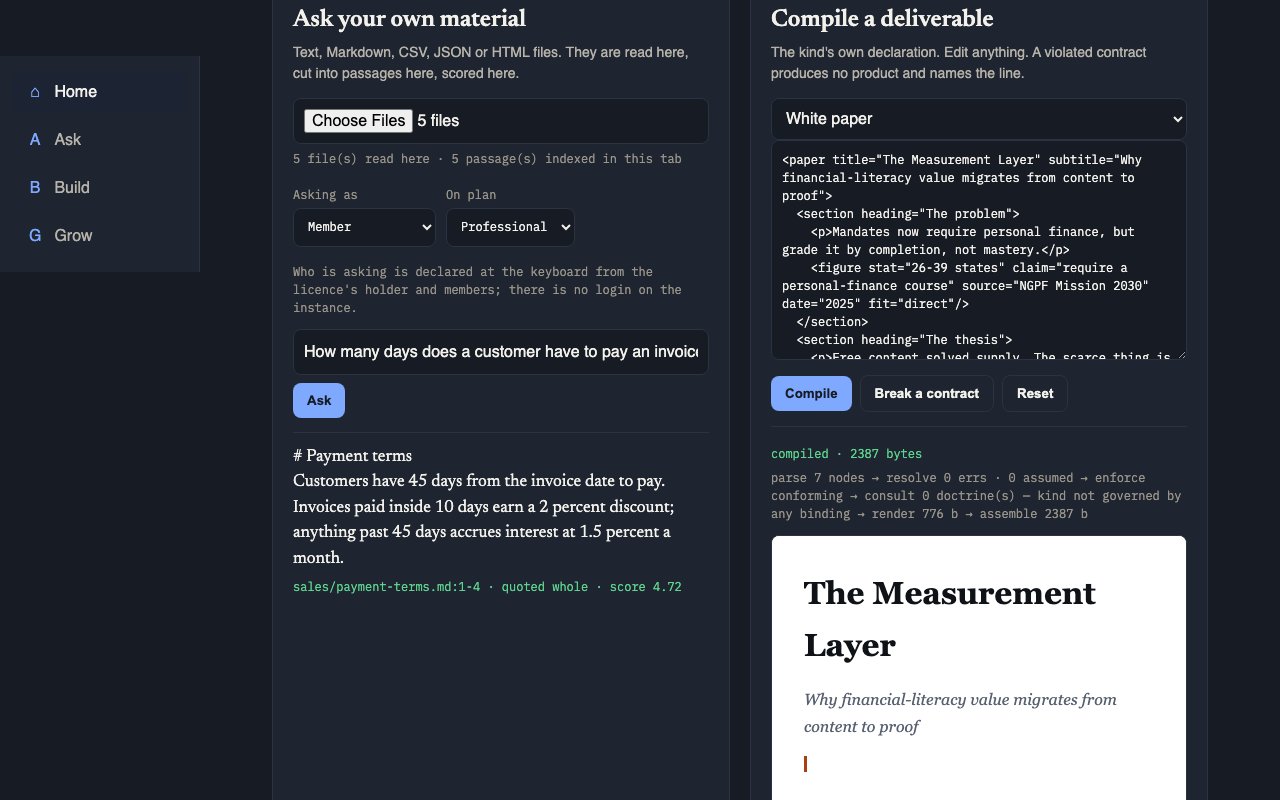
Cite-or-refuse Ask
Who it is for: Any user: founder, PM, sales, intern.
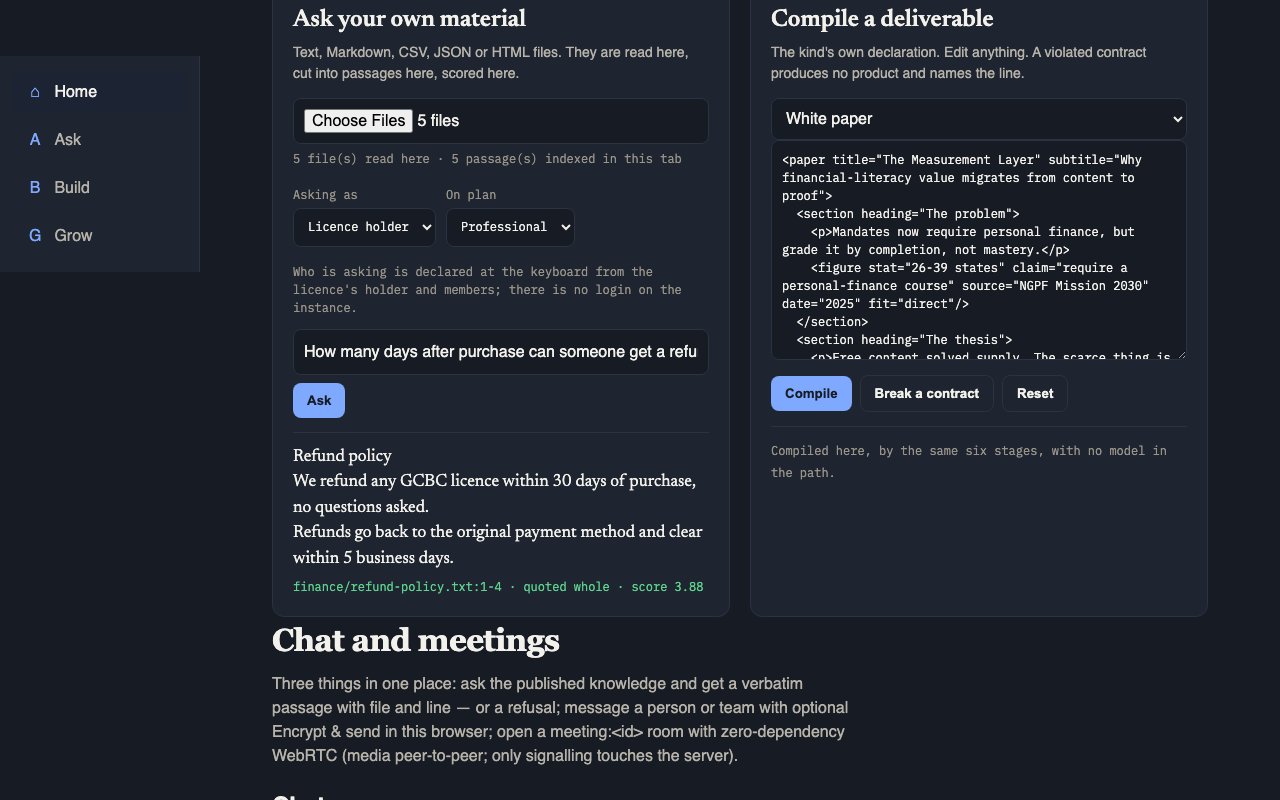
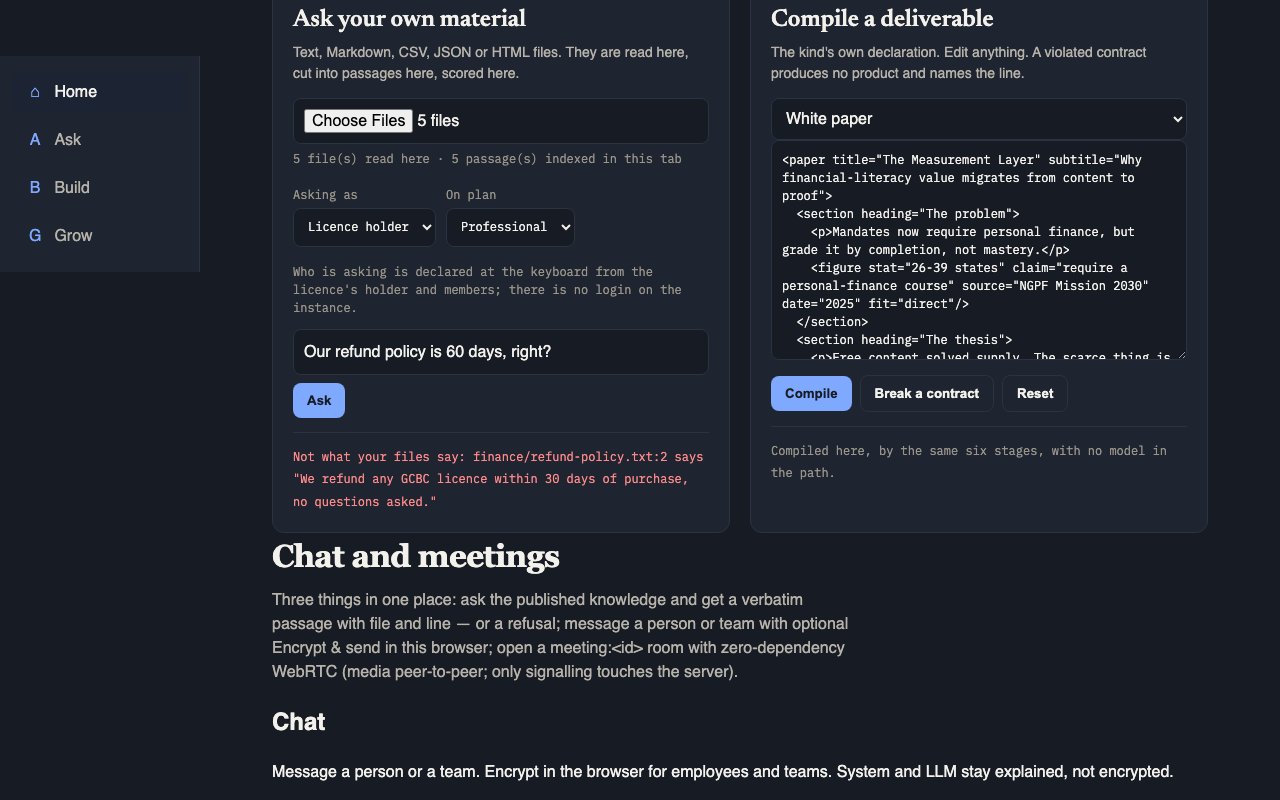
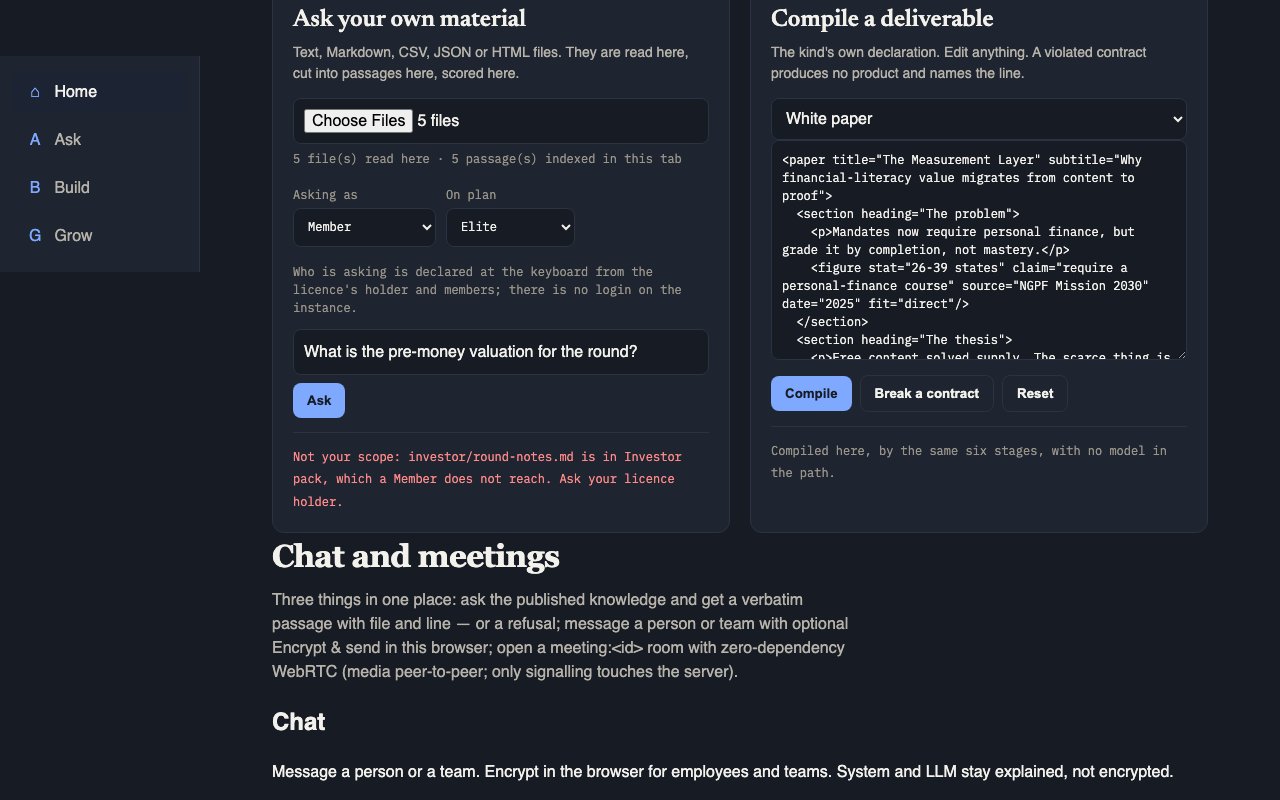
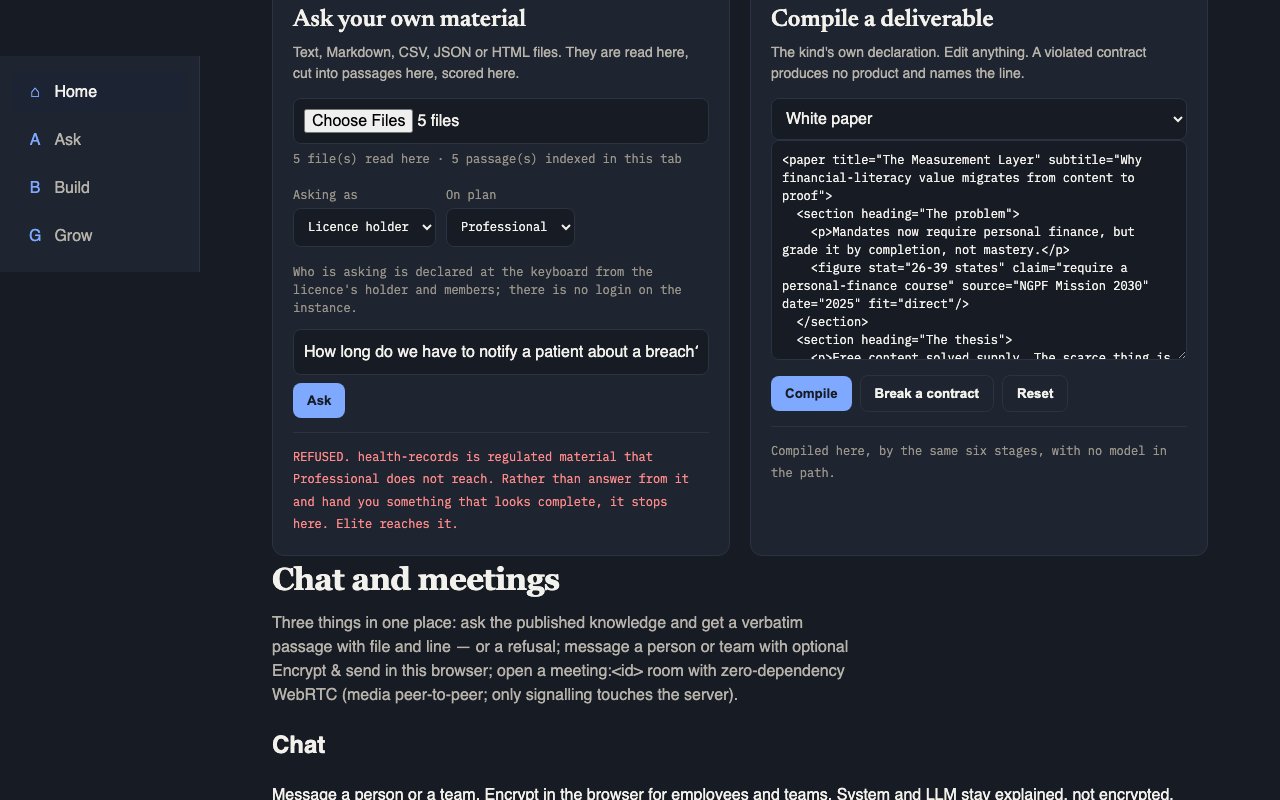
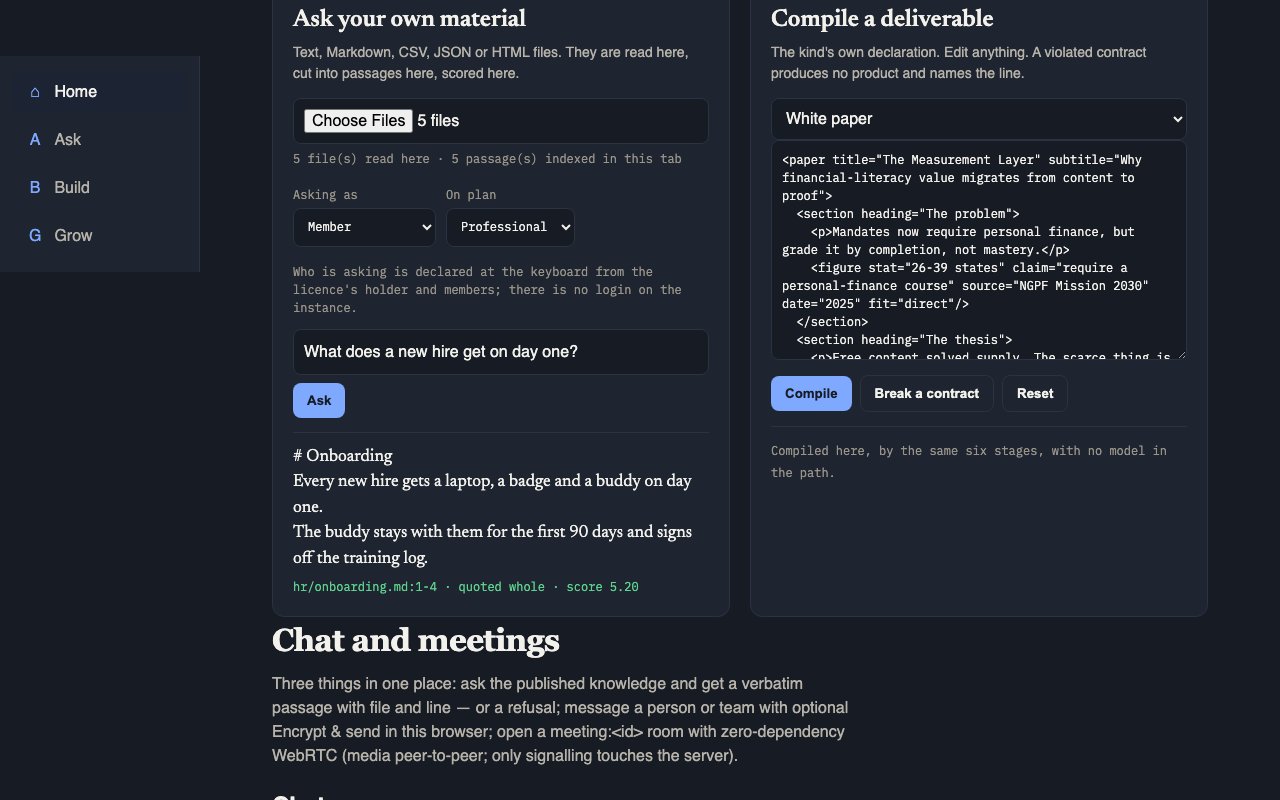
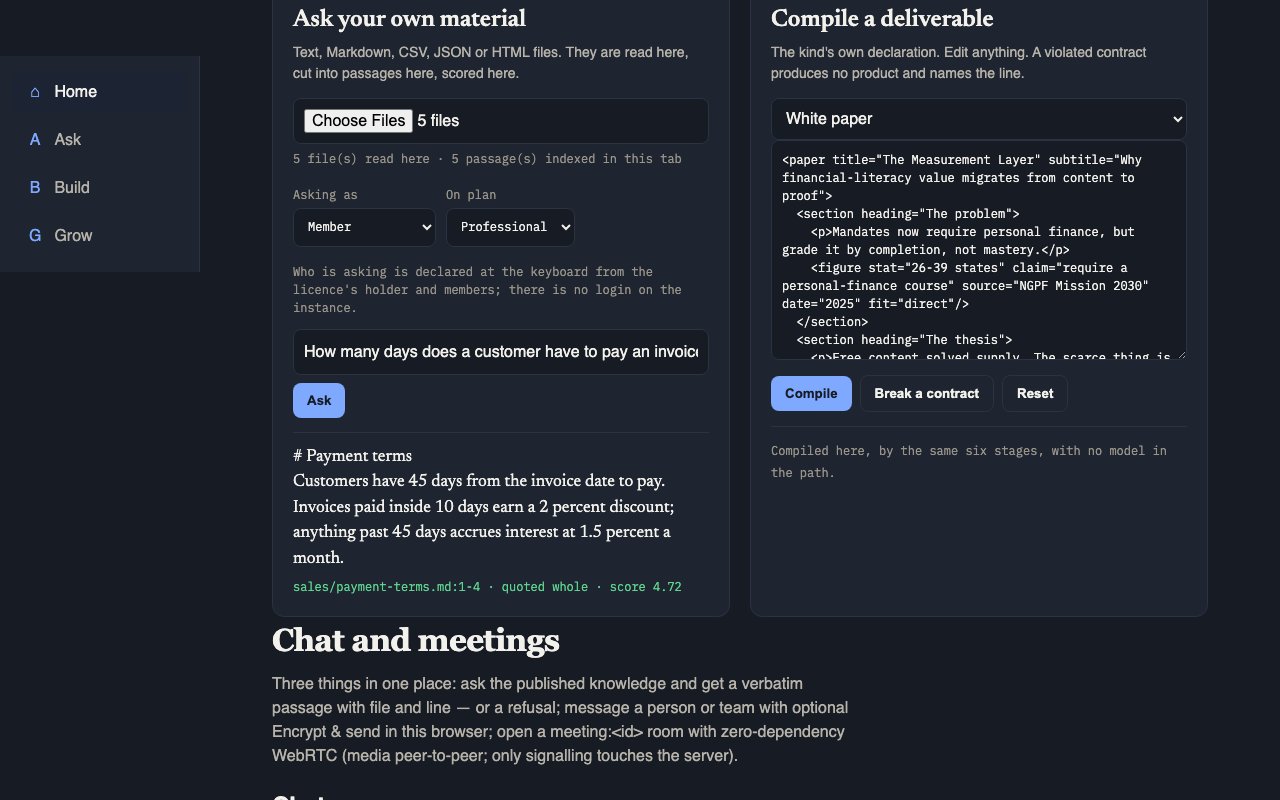
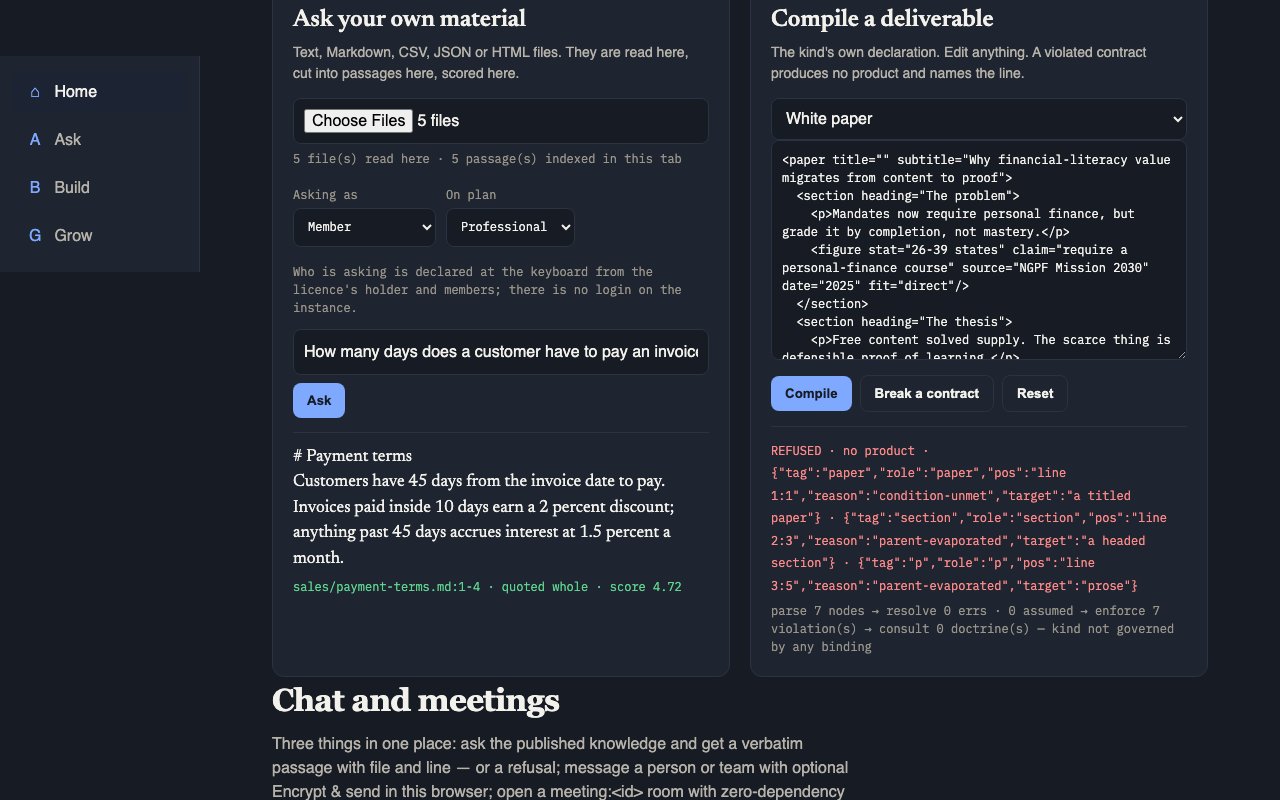
What it does: A question answered with a real passage (file + line) or a clear refuse.
How to use it: Pick a scope, type a question or tap a chip, read the answer or refuse.
Scope: My files
Who it is for: The signed-in person working on their own material.
What it does: Limits answers to that person’s ingested personal corpus.
How to use it: Select My files, then ask. A refuse means it is not in your personal ingest.
Scope: Company
Who it is for: Team members the license holder added (PM, sales, intern, etc.).
What it does: Limits answers to shared company knowledge.
How to use it: New hires should start here after they are added as a user — not on an empty My files corpus.
Scope: Investor pack
Who it is for: Roles allowed to see investor-facing material (Beta / Elite).
What it does: Limits answers to the investor slice (briefs, legal, metrics, strategy).
How to use it: Separated so an intern in Company scope cannot pull fundraising material by accident. Locked on Individual / Professional.
Prompt chips
Who it is for: Anyone unsure what to type — especially new hires.
What it does: One-tap starter questions that fill the ask bar.
How to use it: Tap a chip → question fills → send. Chips do not invent answers; they only propose good questions.
Ingest (Desktop, folder, or file)
Who it is for: License holder or anyone allowed to bring material in — on every plan.
What it does: Indexes Desktop, a chosen folder, or uploaded files so Ask/Build can cite them. Any readable file type DRE supports. This is also the first of the two ways to bring in your tools, "local files and exports": choose a sync folder (Google Drive, OneDrive, SharePoint, Box) or a vendor export (Gmail Takeout mail, Notion, Slack, Confluence, Jira, saved Outlook .eml mail) and GCBC reads it on your computer.
How to use it: Ingest Desktop, Choose folder, Add folder, or upload files; watch progress; stop if needed. For a cloud service, choose its sync folder itself, not your whole home folder. GCBC lists every file it could not read, by name, with the reason (Outlook .pst, .olm and .msg files are not read yet, so save messages as .eml). Your documents and index stay on this computer.
Connectors (every plan)
Who it is for: Connectors on every plan: Beta, Individual, Professional, Elite and enterprise. No plan gates a connector.
What it does: Brings in information from services you already use, beyond your desktop. GCBC connects to each service's existing connector and only reads: pull-only and read-only, and it never changes anything in the service. Live today: Outlook mail, Outlook Calendar, OneDrive, SharePoint and Microsoft Teams, including meeting transcripts (all Microsoft 365, read-only); Notion; HubSpot; an Obsidian vault; and folders on this computer.
How to use it: Open Connectors on the board, pick the service and press Connect. You sign in inside the app with your own account for that service: Microsoft 365 shows a Microsoft sign-in code in the app; Notion and HubSpot ask for your own access key, with a link to where to get it. The first time, GCBC downloads that one connector at a pinned, checked version. Copies land in your GCBC folder on this computer. Disconnect ends it.
Connectors coming next
Who it is for: Anyone whose service is not live yet. When one arrives it is on every plan, like the rest.
What it does: The 11 services still coming are declared but not in the app yet, and each one says why in plain words. One of them, Zoom and Teams meeting transcripts, is half there: Teams transcripts already work through Microsoft Teams.
How to use it: Read the reason. Where it says so, choose that service's folder under Folders instead (Google Drive, Dropbox, Box), or add an export.
What stays on this computer
Who it is for: Every customer, on every plan.
What it does: "Your documents and index stay on this computer. A connector you turn on talks only to that service, using your own sign-in, and nothing is sent to us."
How to use it: The offer page now reads: "Indexing, retrieval and every answer happen on your machine. Nothing is uploaded to us and nothing syncs in the background: files come in when you add them, and a connector pulls only after you press Connect, with your own sign-in, straight from that service to your computer." Its footnote reads: "With no connector turned on, GCBC’s only network request is the once-a-day download of our public, signed update and revocation list; it carries no account, key, file or answer, and every build is tested for that. A connector you turn on talks only to the service you connected, using your own sign-in."
Corpus teaching after refuse
Who it is for: Whoever hit a refuse — often a new hire discovering gaps.
What it does: Turns a refuse into a next step: declare the missing hole in Doctrine, or ingest what was missing.
How to use it: Read the refuse, then either ingest the missing file or open Doctrine and name the hole.
Answer verification
Who it is for: Anyone checking a draft against their own files: yours, a colleague’s, or one an LLM wrote.
What it does: Every sentence of an answer gets one verdict: cited (the file, the lines and the exact quote), contradicted (the file and line holding a different number or date), or no source (the law that refused it). A citation proves your files hold the words, not that a paraphrase of them is right.
How to use it: Save the answer as a text file and run the command, or send it to the route or the tool.
Your LLM, connected to DRE (MCP)
Who it is for: Anyone who uses Claude Desktop, Cursor or another MCP client and wants its answers held to their own files.
What it does: A local MCP server with four tools: list sources, get claims, verify a claim, verify an answer. Every result is a citation or a refusal that names its law. GCBC has no model: the LLM is yours. DRE is the Deterministic Reasoning Engine inside GCBC. It answers only by quoting your files and vetted sources with the file and line, or refuses and says why. It uses no AI model, so the same question always gets the same answer. When you connect an LLM to DRE, the passages DRE returns to it are sent to that LLM’s company, under your account with them. GCBC itself sends none of your files or answers anywhere; once a day it downloads a signed list of updates and revoked licenses from reaveslabs.ai.
How to use it: Add the printed entry to that app’s settings and restart it. It runs on this computer and opens no port.
Chat
Who it is for: Users messaging people (not DRE).
What it does: Team or direct messages, locked on your computer before they are sent, so the relay only ever holds messages it cannot read; @brain can drop a grounded answer into a thread where supported.
How to use it: Open Chat, pick a person or team room, type and send. Every message is locked before it leaves your computer.
Encrypted sending
Who it is for: Everyone who sends a chat message.
What it does: Every message is encrypted on your computer before it is sent; the keys stay on your team’s computers.
How to use it: Nothing to switch on. Check the thread shows the right recipient before you send.
Meetings
Who it is for: Teams that need live conversation with video.
What it does: Schedule or invite by email, then start a meeting with camera when permitted.
How to use it: Schedule or invite → join/start → grant camera/mic when the browser asks. For a group meeting, the account holder first starts GCBC's meeting server (gcbc media start) and shares the address gcbc media status prints.