Three parts: Ask, Build and Grow. Open each one to see every feature, who it is for, what it does and how to use it.
Organize and ask (15)
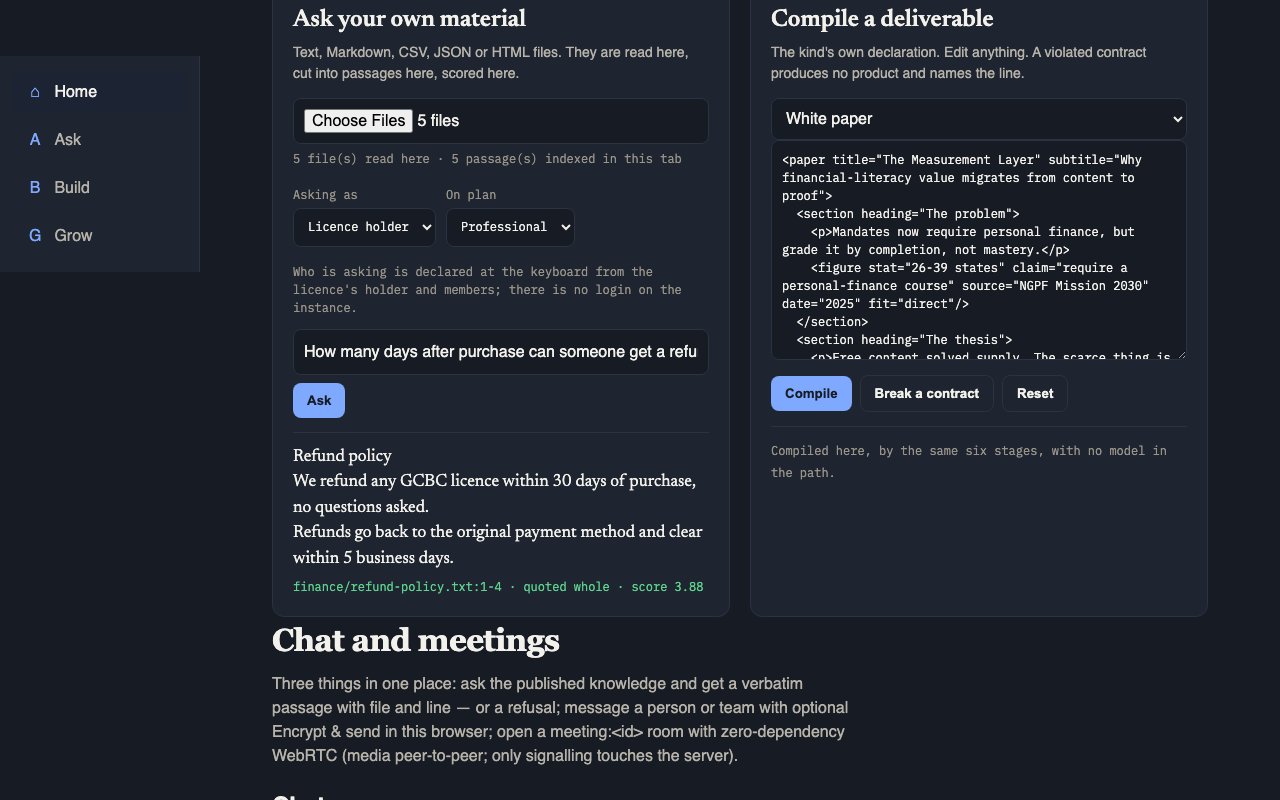
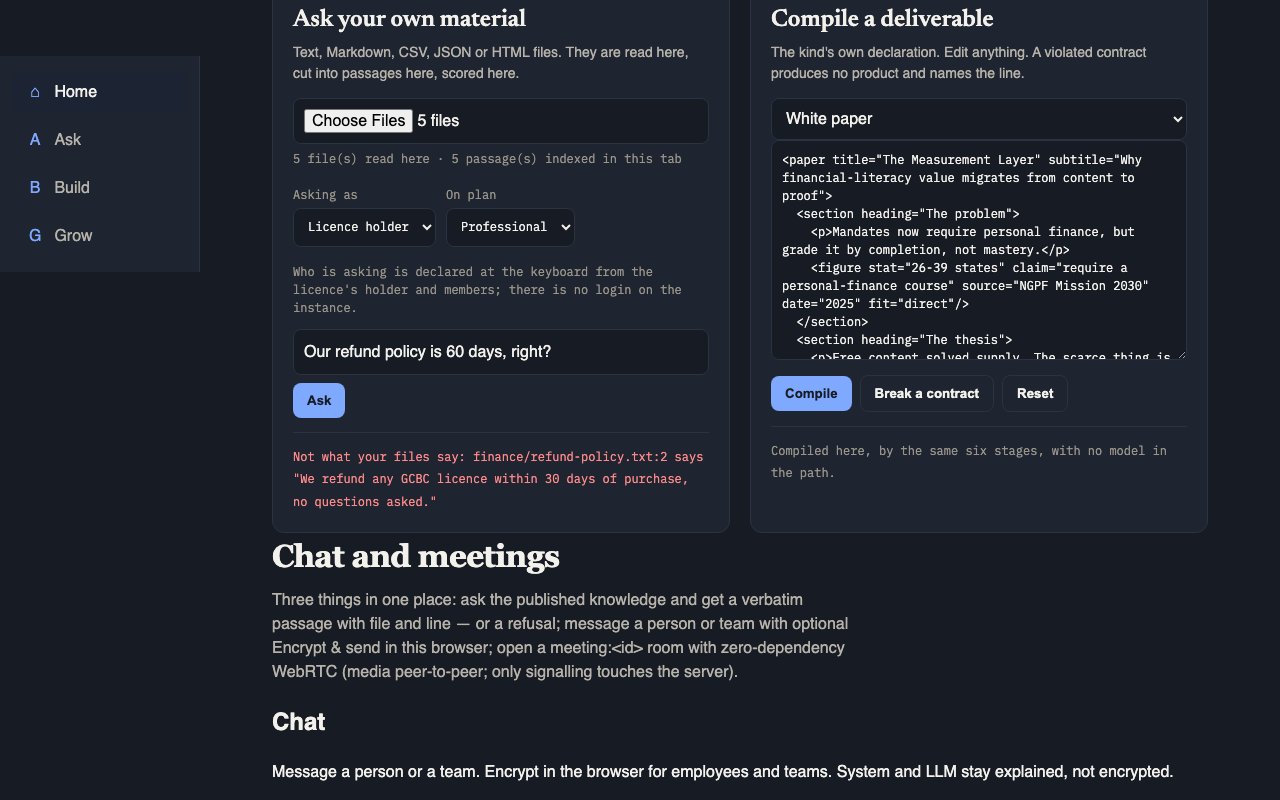
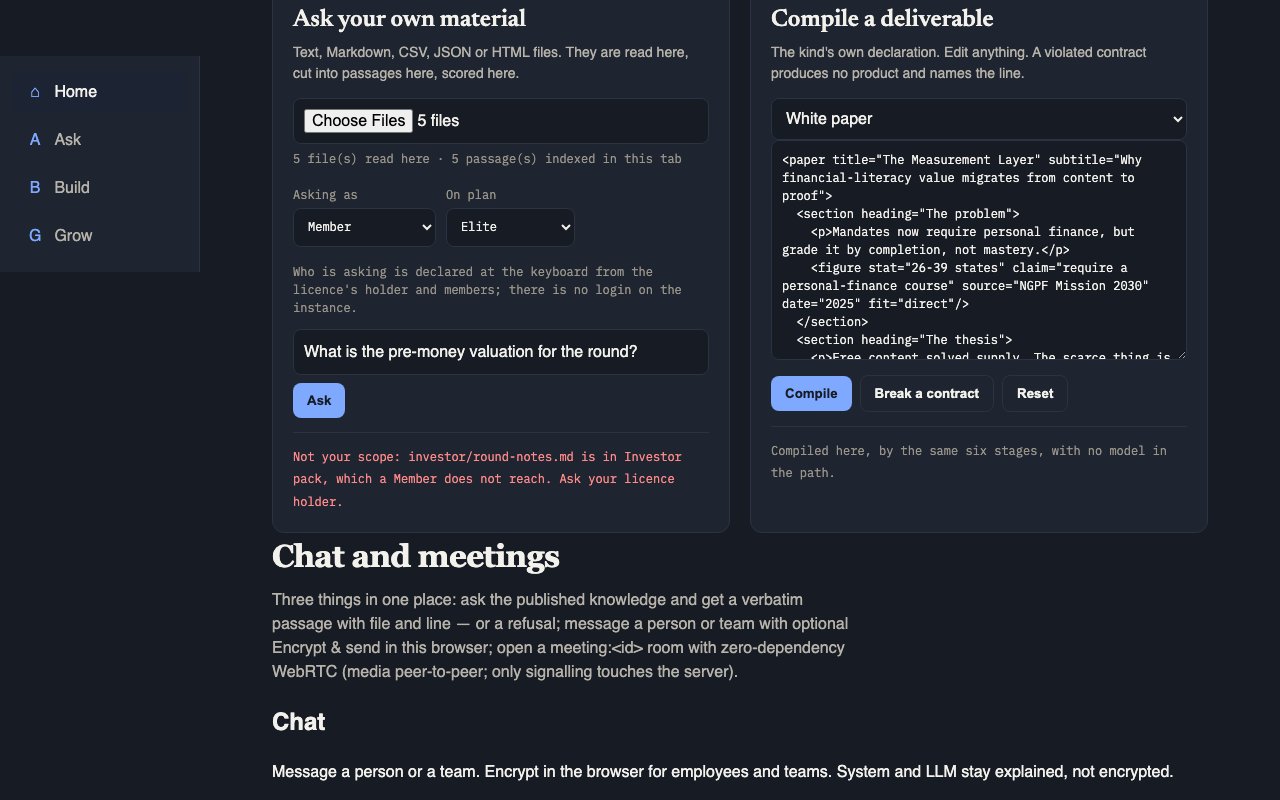
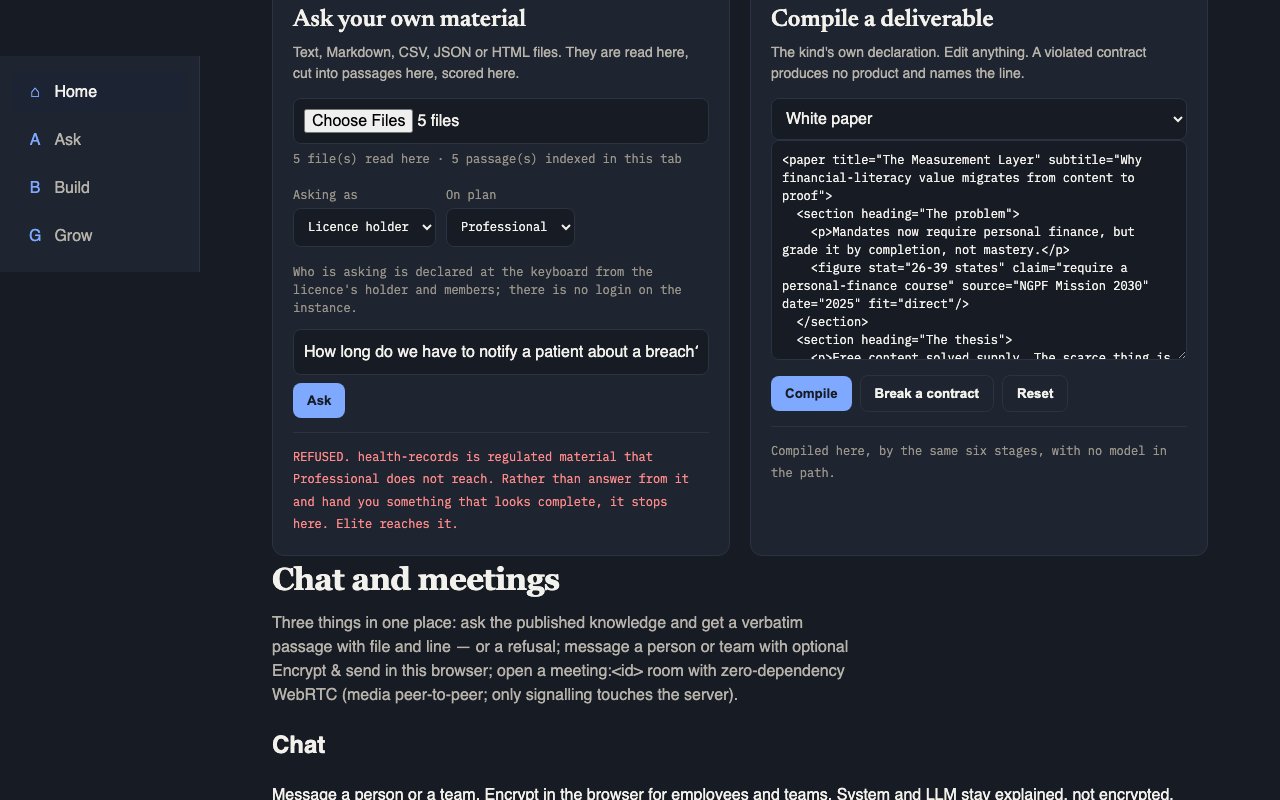
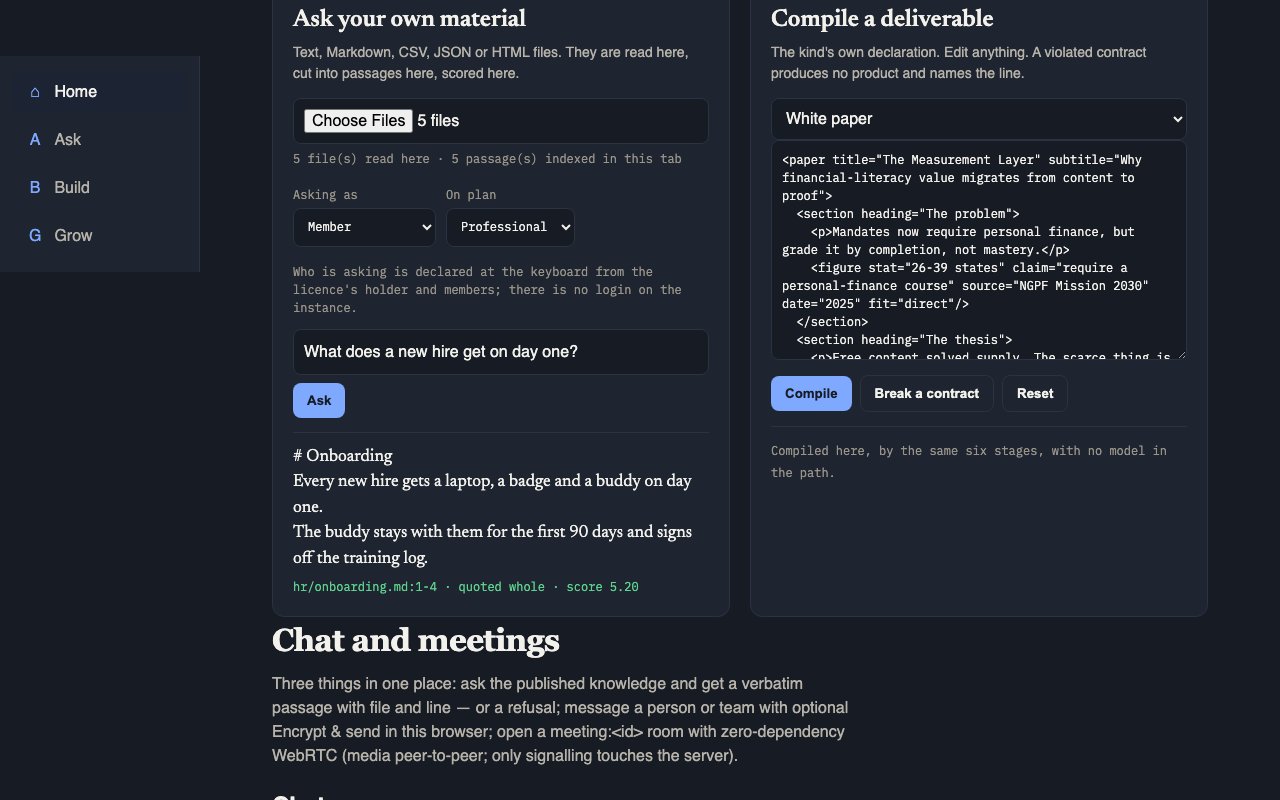
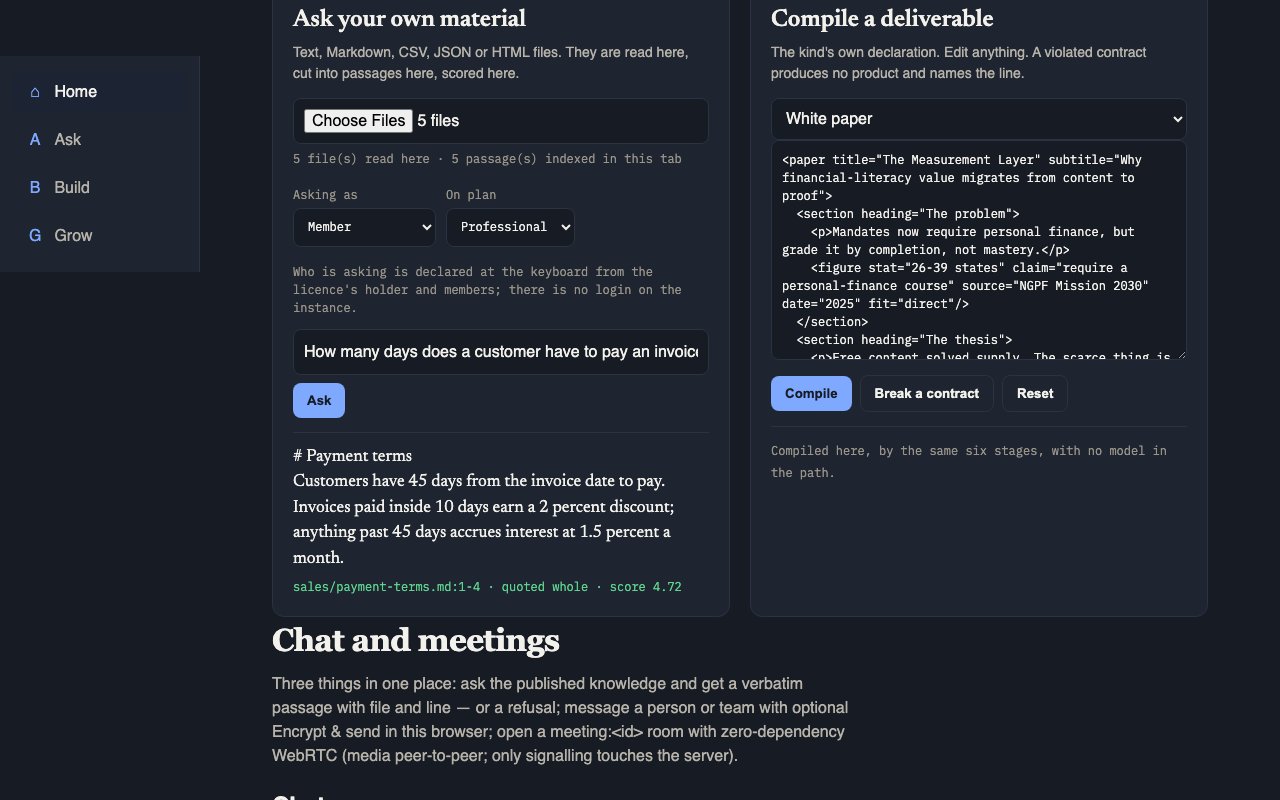
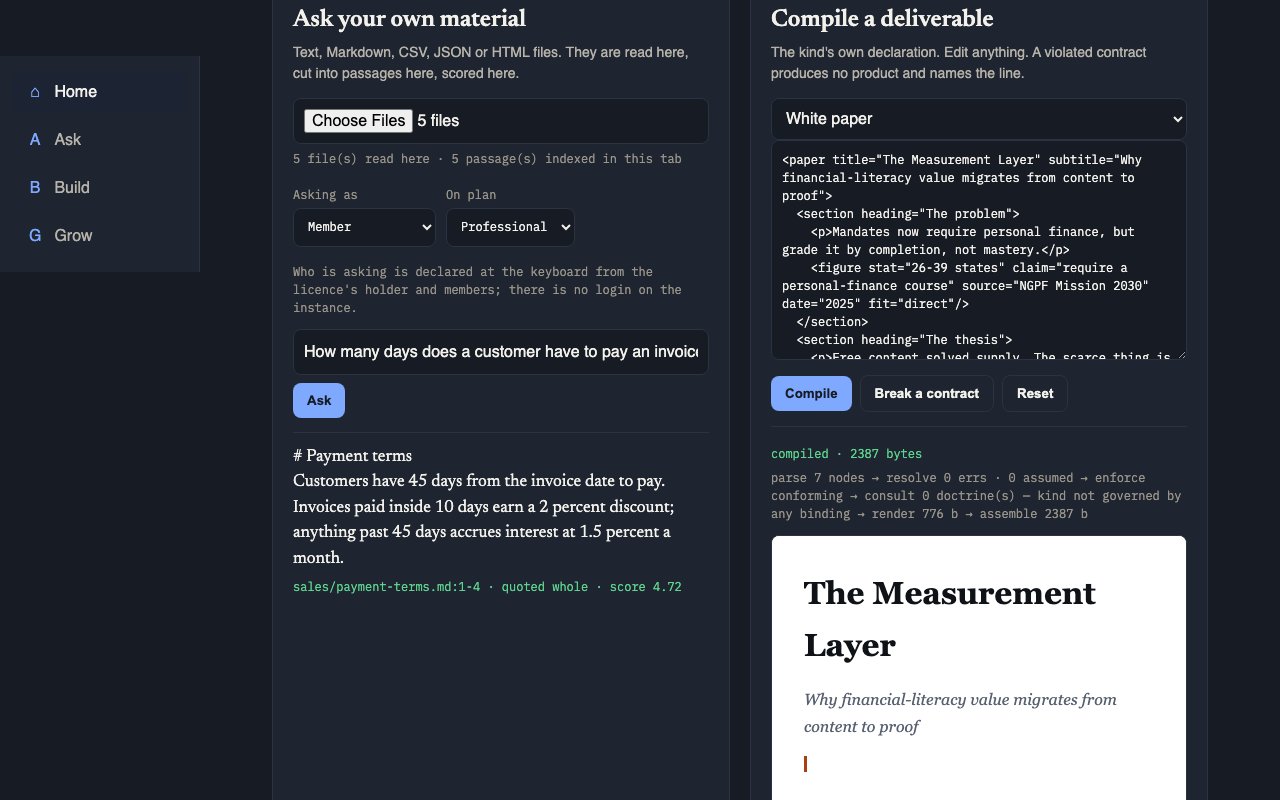
Cite-or-refuse Ask
Who it is for: Any user: founder, PM, sales, intern.
What it does: A question answered with a real passage (file + line) or a clear refuse.
How to use it: Pick a scope, type a question or tap a chip, read the answer or refuse.
Scope: My files
Who it is for: The signed-in person working on their own material.
What it does: Limits answers to that person’s ingested personal corpus.
How to use it: Select My files, then ask. A refuse means it is not in your personal ingest.
Scope: Company
Who it is for: Team members the license holder added (PM, sales, intern, etc.).
What it does: Limits answers to shared company knowledge.
How to use it: New hires should start here after they are added as a user — not on an empty My files corpus.
Scope: Investor pack
Who it is for: Roles allowed to see investor-facing material (Beta / Elite).
What it does: Limits answers to the investor slice (briefs, legal, metrics, strategy).
How to use it: Separated so an intern in Company scope cannot pull fundraising material by accident. Locked on Individual / Professional.
Prompt chips
Who it is for: Anyone unsure what to type — especially new hires.
What it does: One-tap starter questions that fill the ask bar.
How to use it: Tap a chip → question fills → send. Chips do not invent answers; they only propose good questions.
Ingest (Desktop, folder, or file)
Who it is for: License holder or anyone allowed to bring material in — on every plan.
What it does: Indexes Desktop, a chosen folder, or uploaded files so Ask/Build can cite them. Any readable file type DRE supports. This is also the first of the two ways to bring in your tools, "local files and exports": choose a sync folder (Google Drive, OneDrive, SharePoint, Box) or a vendor export (Gmail Takeout mail, Notion, Slack, Confluence, Jira, saved Outlook .eml mail) and GCBC reads it on your computer.
How to use it: Ingest Desktop, Choose folder, Add folder, or upload files; watch progress; stop if needed. For a cloud service, choose its sync folder itself, not your whole home folder. GCBC lists every file it could not read, by name, with the reason (Outlook .pst, .olm and .msg files are not read yet, so save messages as .eml). Your documents and index stay on this computer.
Connectors (every plan)
Who it is for: Connectors on every plan: Beta, Individual, Professional, Elite and enterprise. No plan gates a connector.
What it does: Brings in information from services you already use, beyond your desktop. GCBC connects to each service's existing connector and only reads: pull-only and read-only, and it never changes anything in the service. Live today: Outlook mail, Outlook Calendar, OneDrive, SharePoint and Microsoft Teams, including meeting transcripts (all Microsoft 365, read-only); Notion; HubSpot; an Obsidian vault; and folders on this computer.
How to use it: Open Connectors on the board, pick the service and press Connect. You sign in inside the app with your own account for that service: Microsoft 365 shows a Microsoft sign-in code in the app; Notion and HubSpot ask for your own access key, with a link to where to get it. The first time, GCBC downloads that one connector at a pinned, checked version. Copies land in your GCBC folder on this computer. Disconnect ends it.
Connectors coming next
Who it is for: Anyone whose service is not live yet. When one arrives it is on every plan, like the rest.
What it does: The 11 services still coming are declared but not in the app yet, and each one says why in plain words. One of them, Zoom and Teams meeting transcripts, is half there: Teams transcripts already work through Microsoft Teams.
How to use it: Read the reason. Where it says so, choose that service's folder under Folders instead (Google Drive, Dropbox, Box), or add an export.
What stays on this computer
Who it is for: Every customer, on every plan.
What it does: "Your documents and index stay on this computer. A connector you turn on talks only to that service, using your own sign-in, and nothing is sent to us."
How to use it: The offer page now reads: "Indexing, retrieval and every answer happen on your machine. Nothing is uploaded to us and nothing syncs in the background: files come in when you add them, and a connector pulls only after you press Connect, with your own sign-in, straight from that service to your computer." Its footnote reads: "With no connector turned on, GCBC’s only network request is the once-a-day download of our public, signed update and revocation list; it carries no account, key, file or answer, and every build is tested for that. A connector you turn on talks only to the service you connected, using your own sign-in."
Corpus teaching after refuse
Who it is for: Whoever hit a refuse — often a new hire discovering gaps.
What it does: Turns a refuse into a next step: declare the missing hole in Doctrine, or ingest what was missing.
How to use it: Read the refuse, then either ingest the missing file or open Doctrine and name the hole.
Answer verification
Who it is for: Anyone checking a draft against their own files: yours, a colleague’s, or one an LLM wrote.
What it does: Every sentence of an answer gets one verdict: cited (the file, the lines and the exact quote), contradicted (the file and line holding a different number or date), or no source (the law that refused it). A citation proves your files hold the words, not that a paraphrase of them is right.
How to use it: Save the answer as a text file and run the command, or send it to the route or the tool.
Your LLM, connected to DRE (MCP)
Who it is for: Anyone who uses Claude Desktop, Cursor or another MCP client and wants its answers held to their own files.
What it does: A local MCP server with four tools: list sources, get claims, verify a claim, verify an answer. Every result is a citation or a refusal that names its law. GCBC has no model: the LLM is yours. DRE is the Deterministic Reasoning Engine inside GCBC. It answers only by quoting your files and vetted sources with the file and line, or refuses and says why. It uses no AI model, so the same question always gets the same answer. When you connect an LLM to DRE, the passages DRE returns to it are sent to that LLM’s company, under your account with them. GCBC itself sends none of your files or answers anywhere; once a day it downloads a signed list of updates and revoked licenses from reaveslabs.ai.
How to use it: Add the printed entry to that app’s settings and restart it. It runs on this computer and opens no port.
Chat
Who it is for: Users messaging people (not DRE).
What it does: Team or direct messages, locked on your computer before they are sent, so the relay only ever holds messages it cannot read; @brain can drop a grounded answer into a thread where supported.
How to use it: Open Chat, pick a person or team room, type and send. Every message is locked before it leaves your computer.
Encrypted sending
Who it is for: Everyone who sends a chat message.
What it does: Every message is encrypted on your computer before it is sent; the keys stay on your team’s computers.
How to use it: Nothing to switch on. Check the thread shows the right recipient before you send.
Meetings
Who it is for: Teams that need live conversation with video.
What it does: Schedule or invite by email, then start a meeting with camera when permitted.
How to use it: Schedule or invite → join/start → grant camera/mic when the browser asks. For a group meeting, the account holder first starts GCBC's meeting server (gcbc media start) and shares the address gcbc media status prints.
Build and prove (16)
Sources
Who it is for: Builders and license holders maintaining what may be cited.
What it does: The registry of domains and sources DRE is allowed to use.
How to use it: Open Sources; review domain counts and registered material. Unregistered files cannot enter a compile.
Doctrine
Who it is for: Founders and operators who settle rules.
What it does: Numbered laws gates and refusals trace to.
How to use it: Open Doctrine; read or declare settled rules the compile may treat as true.
Sandbox
Who it is for: Anyone trying a build safely.
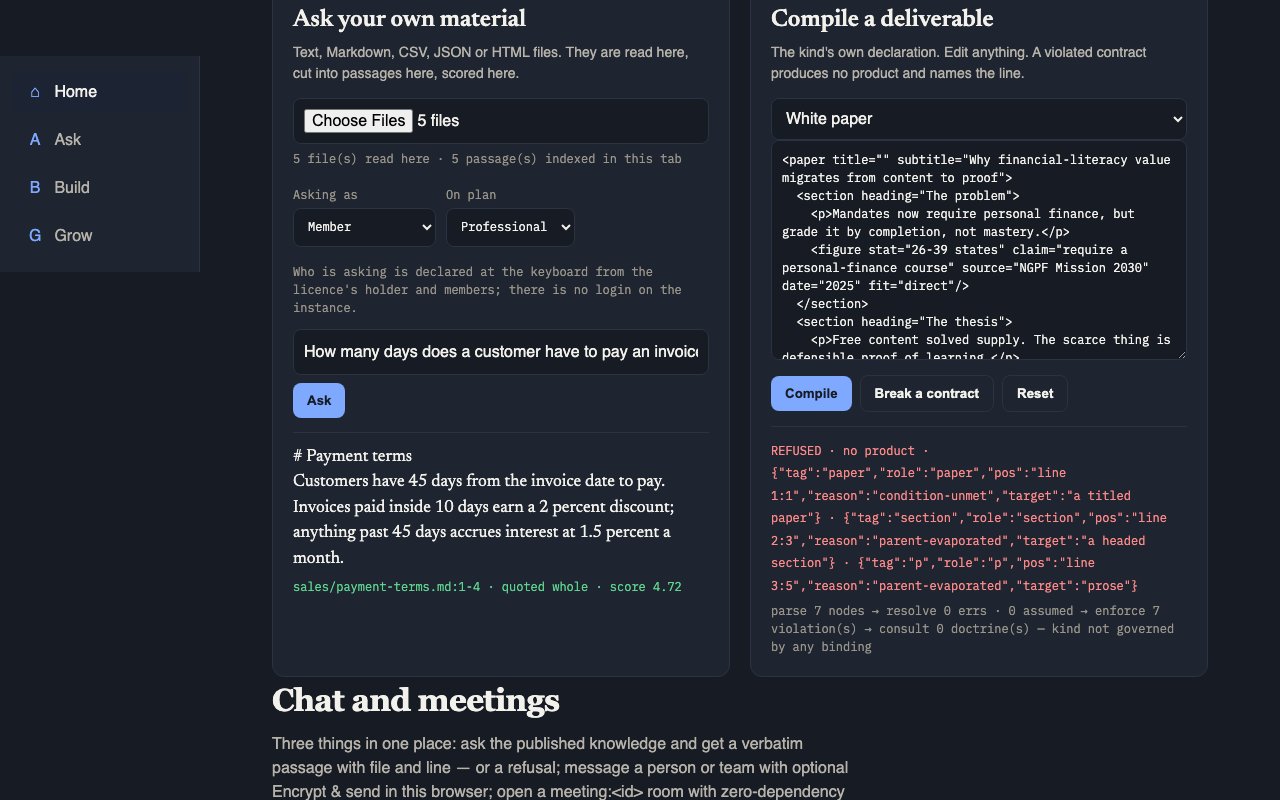
What it does: Compile a kind from sample/edited XML without shipping.
How to use it: Pick a kind, edit XML if needed, Compile; read conforming/emitted/bytes/preview.
Ingest (in Build)
Who it is for: Same as ASK ingest.
What it does: Desktop, folder, or file upload into the shared corpus.
How to use it: Same controls as ASK: Desktop / folder / upload / progress / stop.
Ask inside Build
Who it is for: Builders checking understanding mid-compile path.
What it does: Quick cite-or-refuse against the ingested corpus.
How to use it: Type a check question; get cite or refuse.
Compile (sixty kinds / ten categories)
Who it is for: Anyone producing a deliverable their plan allows.
What it does: Turn a declaration into a finished artifact or a named refusal.
How to use it: Choose kind, satisfy required fields, compile; refuse names the break if something is missing.
Prove
Who it is for: Anyone who must show evidence to a stakeholder.
What it does: Live pack: chain health, registry size, recent compiles.
How to use it: Open Prove; read chain/registry/product rows.
What shipped
Who it is for: Builders tracking real outputs.
What it does: Artifacts that actually compiled onto disk.
How to use it: Open the list; open an artifact by kind/id when present.
System health
Who it is for: Operators checking whether the instance is fit.
What it does: Live counts: chain, kinds, registry, entitlement.
How to use it: Open and read green/red counts.
Index fingerprints and replayable receipts
Who it is for: Anyone who must show later where an answer came from: an auditor, an investor, the license holder.
What it does: A cited answer can be saved as a receipt: the claim, the file, the lines, the quote, the file’s hash, the index fingerprint and the engine version. Replay re-checks it offline and says whether it still holds, what changed if not, and whether the index is still the one it came from. The fingerprint is recomputed from the approved files on disk, never read back.
How to use it: Save the receipt with the answer; run replay on it whenever it matters.
Security hash chain
Who it is for: Anyone verifying tamper-evidence.
What it does: Linked action trail with live linkage verdict.
How to use it: Open chain view; inspect entries, broken links, head.
Connector safety and download checks (S7 and S6)
Who it is for: Automatic. It applies to every customer download before it ships.
What it does: Two gates. S7, the connector safety rule, is ratified: a connector installs only from the exact pinned versions shipped in the download (lockfile-only installs); the app accepts a change only from its own page (strict Origin and anti-forgery checks); each connector declares the addresses it talks to and the settings it may receive; and GCBC calls only a declared list of read-only actions (a read allowlist). S6, the check that no signing secret ships in the download, is green on this release, and S7 passed on both downloads.
How to use it: A download that fails either gate is not published. Your sign-in details are kept on this computer (the Mac Keychain, or a private file in your GCBC data folder), never in a log and never in the download.
Rebuild-check quotes
Who it is for: The compile path itself (automatic).
What it does: Reopens passages from disk and compares; drift stops the build.
How to use it: You see it as a refuse/stop when a source changed under you.
Four-quadrant proving ground
Who it is for: Learners and operators stress-testing the compiler story.
What it does: Input → Build → Generate → Project with break-any-stage demos.
How to use it: Run stages; break one on purpose; watch later stages produce nothing.
Vetted library / Blend / Add sources
Who it is for: Professional, Elite, and Beta (Elite reach). Individual: no library.
What it does: Curated domains; blend your facts with library facts; permanently add your sources.
How to use it: Use library domains your plan unlocks; blend in one deliverable; add sources permanently on Pro+.
Regulated domains + freshness
Who it is for: Elite and Beta get the full regulated library. Individual gets the regulated walls too, but only the ones its setup answers open; its vetted library stays at zero. Professional does not include regulated domains.
What it does: Privacy/finance domains (the health-records, minors and financial-advice walls). On Elite and Beta, every build re-checks freshness; expired blocks ship.
How to use it: Compile against regulated material only where your plan and your answers open it; fix expired sources before ship.
Grow the company (11)
Add members / user limits
Who it is for: License holder (and roles allowed to invite).
What it does: Invite teammates by email up to your plan's user limit: Individual: 3 · Professional: 25 · Elite: unlimited.
How to use it: Enter email, invite; they appear in the user list as people or reserved slots.
Library reach
Who it is for: Anyone checking what their plan can cite.
What it does: Shows unlocked vetted-library domain count (0 / 18 / 18).
How to use it: Open Library reach / Sources and read domain unlocks.
Your company
Who it is for: Users viewing the org snapshot.
What it does: Customer-safe summary: you, users, onboarding.
How to use it: Open the cards; no AI dump of private VP material.
Approvals
Who it is for: Founder/approvers with pending decisions.
What it does: Proposals and held items waiting on approve/reject.
How to use it: Open list; act on pending items.
Your plan
Who it is for: Buyer / license holder.
What it does: Individual / Professional / Elite (and Beta window) with user limits and library caps.
How to use it: Open plan stage; compare tiers; billing actions only when real Stripe binding exists.
Investor pack
Who it is for: Beta / Elite roles with unlock.
What it does: Open investor docs from the investor room.
How to use it: If unlocked, browse docs; if locked, clear refuse naming the plan.
Quarterly digest
Who it is for: Elite / Beta service recipients.
What it does: Written digest of what moved in your domains — delivered, not only requested.
How to use it: Receive/open the digest for your domains.
Priority queue and named contact
Who it is for: Elite / Beta customers needing faster build access.
What it does: Priority build queue, early access to new kinds, named contact instead of only a form.
How to use it: Use the priority path; contact the named person.
Outward claims and refusals
Who it is for: Anyone writing marketing or sales copy.
What it does: Allowed vs forbidden external claims.
How to use it: Read allowed/forbidden lists; do not ship forbidden lines.
Chat (from Grow)
Who it is for: Same as ASK Chat — team messaging entry from Grow.
What it does: Same human messaging surface.
How to use it: Same as ASK Chat.
Get in / access
Who it is for: Prospects and new licensees.
What it does: How someone starts: license activation, Beta, web plans, with no fake checkout in the download. The GCBC Mini is retired and no longer sold. Release r5 is live, and the download is a double-click app: GCBC.app for Mac, GCBC for Windows, and Start Here.pdf, nothing else. It opens with a double-click; no terminal.
How to use it: Mac: double-click the zip, drag GCBC into Applications, double-click GCBC (the first time, allow it once under Privacy & Security). Windows: open GCBC for Windows and double-click GCBC.bat. The browser opens the welcome page; paste the license key from the email and click Activate. Four steps, about two minutes.